
Install CrowdPics on Your Fire Stick
Transform any TV into an interactive social photo wall in under 5 minutes. No technical skills required.
Before You Start
You need to enable installation from unknown sources on your Fire Stick:
- 1Go to Settings on your Fire Stick (gear icon)
- 2Select My Fire TV (or Device on older models)
- 3Select Developer Options
- 4Turn on Install Unknown Apps
- 5Enable it for Downloader (you'll install this next)
Using the Downloader App
Recommended Method
Find Downloader in Amazon App Store
On your Fire Stick, navigate to the Search icon (magnifying glass) and type 'Downloader'. Look for the orange Downloader app by AFTVnews - it's the most popular sideloading tool.
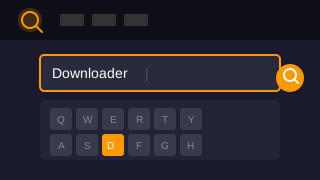
Install the Downloader App
Select the Downloader app and click 'Get' or 'Download' to install it. The app is free and only takes a few seconds to install.

Open Downloader and Enter URL
Open the Downloader app. In the URL field at the top, use your remote to type: crowdpics.ai/tv and then press 'Go' or the OK button.
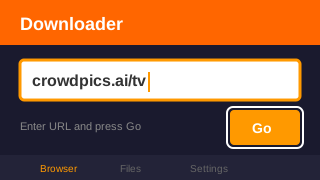
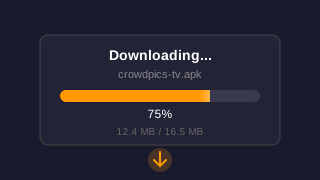
Download Starts Automatically
The CrowdPics app will begin downloading. This usually takes less than 30 seconds depending on your internet connection.
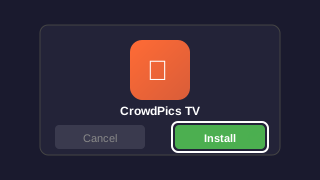
Install When Prompted
Once the download completes, you'll see an Install button. Click 'Install' to begin installation. You may need to scroll down to see the button.
Open and Enjoy
After installation, click 'Open' to launch CrowdPics. The app will guide you through connecting to your venue or setting up your display.
Ready to Download?
Enter this URL in the Downloader app on your Fire Stick:
crowdpics.ai/tvOr download directly to your computer:
Download CrowdPics APKAlternative: Using Silk Browser
If you prefer not to install the Downloader app, you can use the built-in Silk Browser.
- 1Open Silk Browser from your Fire Stick apps (search for it if needed)
- 2Navigate to crowdpics.ai/tv using the on-screen keyboard
- 3The APK download will start automatically
- 4Open the downloaded file and follow the prompts to install
Using Silk Browser requires more typing with the remote, which is why we recommend the Downloader app method.
Troubleshooting
Common issues and how to fix them
Need Help with Installation?
Our team is ready to assist you via WhatsApp.